Integrate with WorkBuddy
WorkBuddy is a desktop-level AI Agent from the Tencent Cloud CodeBuddy team. It drives local file operations through natural language, runs multiple agents in parallel, and supports custom models via the OpenAI-compatible protocol.
I. Prerequisites
Obtain your API Key from the LongCat Platform, and confirm on the Usage page that your account has sufficient token quota.
The LongCat API platform currently provides the following models:
| Model Name | API Format | Description |
|---|---|---|
| LongCat-2.5-Preview | OpenAI/Anthropic | High-performance agentic model |
| LongCat-2.0 | OpenAI/Anthropic | High-performance agentic model |
II. Install WorkBuddy
Download and install from the WorkBuddy website. Windows and macOS are supported.
III. Configure the LongCat Model
Option 1: GUI configuration (recommended)
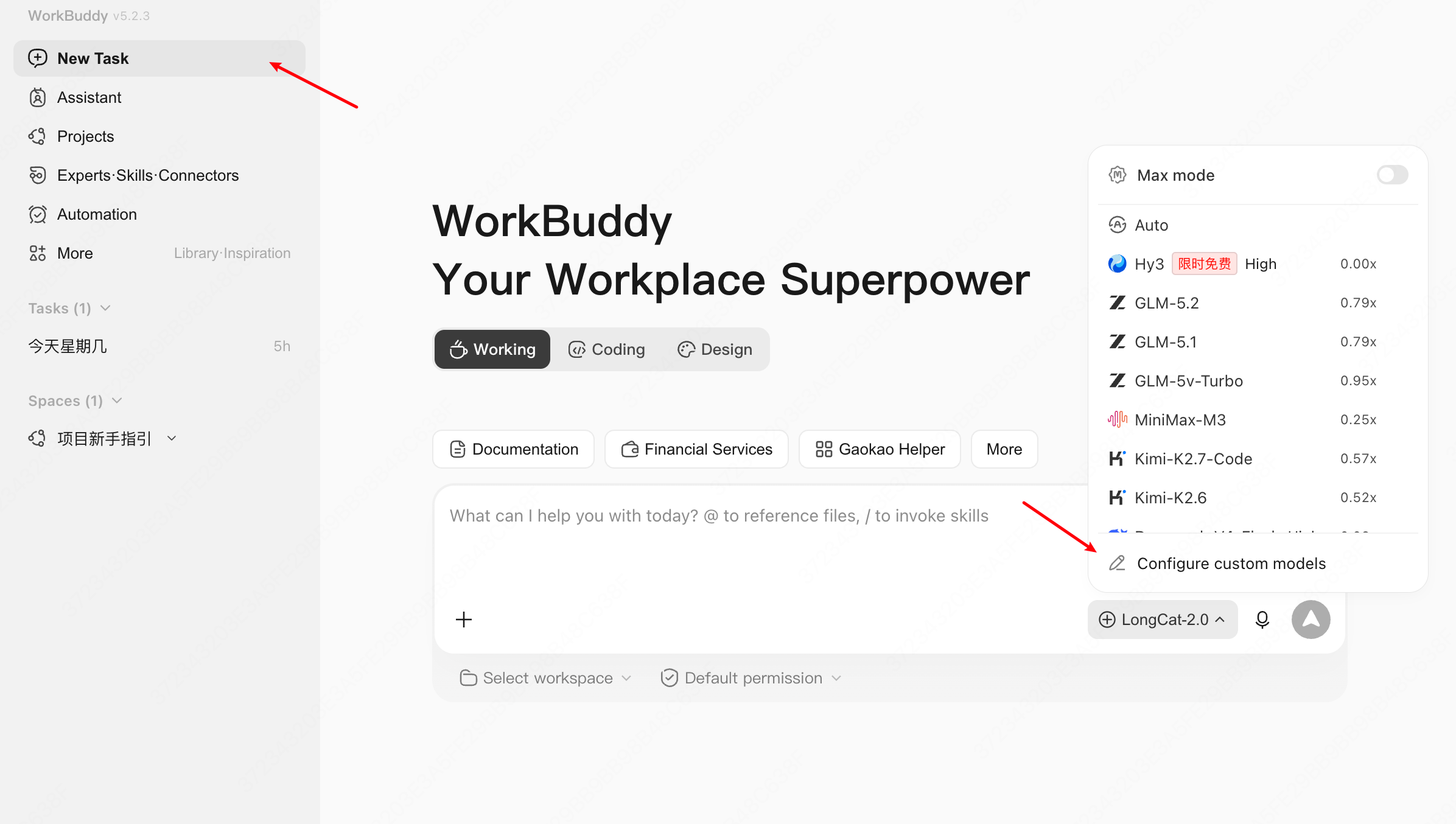
- Open WorkBuddy. In the New Task dialog, at the model switcher, click Configure Custom Model.
- On the Add Model page, select
Custom(or OpenAI-compatible) as the provider, and fill in:- API URL:
https://api.longcat.chat/openai/v1/chat/completions - API KEY: your LongCat API Key
- Model Name:
LongCat-2.5-Preview
- API URL:
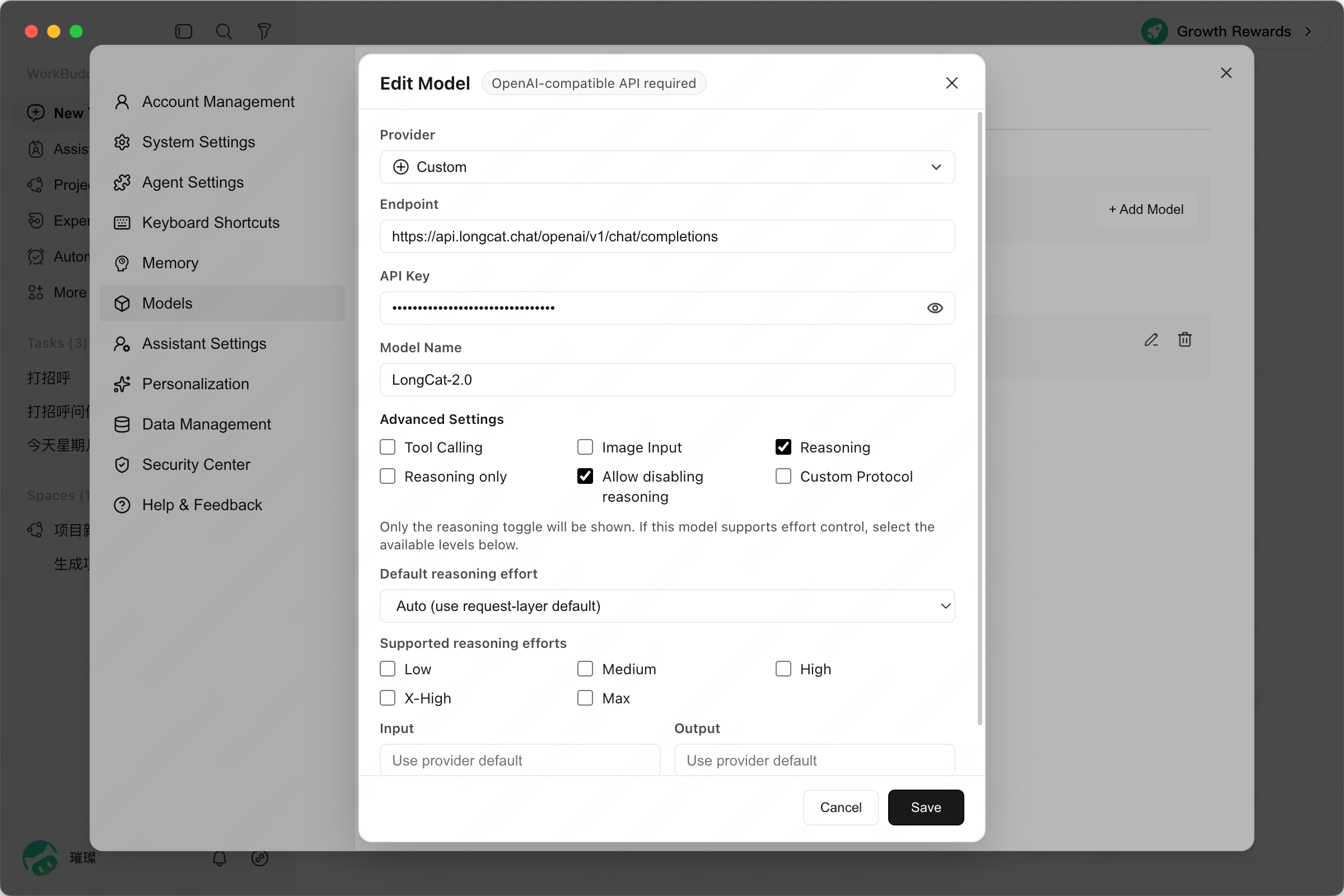
- Click Save to finish.
Option 2: Configuration file models.json
Create or edit the configuration file:
- macOS:
~/.workbuddy/models.json - Windows:
<User Home>\.workbuddy\models.json
Write the following into the file:
{
  "models": [
    {
      "id": "LongCat-2.5-Preview",
      "name": "LongCat-2.5-Preview",
      "vendor": "LongCat",
      "url": "https://api.longcat.chat/openai/v1/chat/completions",
      "apiKey": "LongCat API Key",
      "supportsToolCall": true,
      "supportsReasoning": true
    }
  ]
}
Fill the apiKey field with the API Key you obtained from the LongCat Platform. Restart WorkBuddy for the changes to take effect.
Project-level configuration is also supported: create
<project root>/.workbuddy/models.json. Project-level configuration takes precedence over user-level configuration.
IV. View and Switch Models
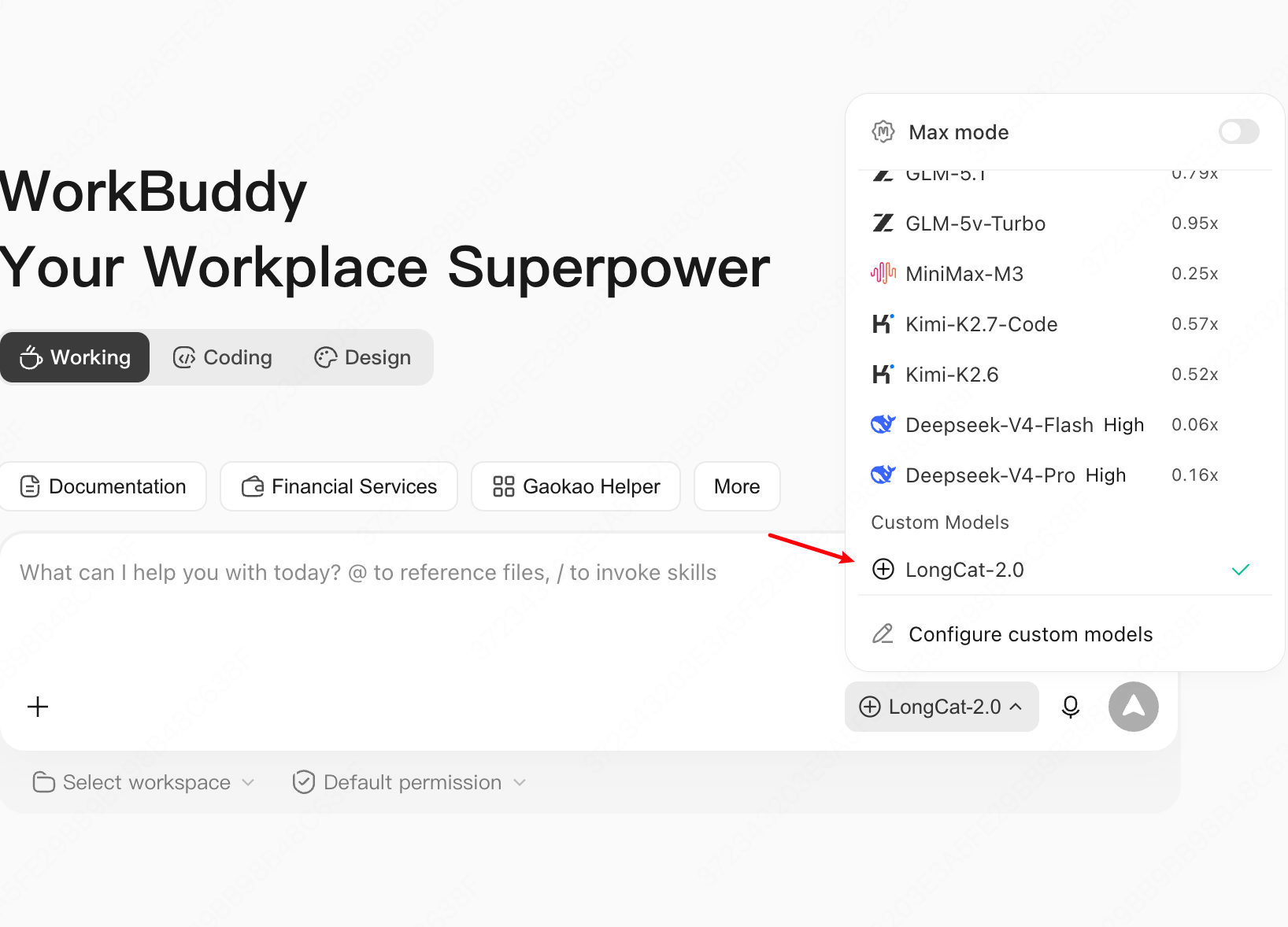
Once configured, turn off Auto mode and open the model list to see the configured LongCat model.
V. Usage
Select the configured LongCat-2.5-Preview model, then start chatting, coding, and more.
VI. FAQ
The model does not appear in the dropdown after configuration?
- Check that
models.jsonis valid JSON and saved as UTF-8 without BOM. - Confirm the file is in the correct directory (
~/.workbuddy/models.json). - Fully restart WorkBuddy and check again.
Authentication failure or 401?
- Verify the API Key is a valid LongCat API Key, and that you did not swap the API Key and API URL fields.
Model not found or 404?
- Verify the model
idis exactlyLongCat-2.5-Previewand the API URL ishttps://api.longcat.chat/openai/v1/chat/completions.