DeepSeek Harness
Using LongCat Models for AI Programming in DeepSeek Harness
Overview
DeepSeek Harness is an open-source agent harness desktop application (macOS / Windows) from DeepSeek, built on a plugin-based architecture. LongCat series models are supported in DeepSeek Harness. This document describes how to integrate DeepSeek Harness with the LongCat API Open Platform.
Prerequisites
1. Install DeepSeek Harness
Get the desktop installer from the DeepSeek download page:
- macOS (Apple Silicon, macOS 13 or later): Download .dmg
- Windows (64-bit): Download .exe
Just launch the app after installation. The desktop app supports running in the background; use "Check for Updates" in the application menu to update.
2. Get a LongCat API Key
Get your API Key from the LongCat Open Platform, and make sure your account has sufficient token quota on the Usage page.
The LongCat API Open Platform currently offers the following models:
| Model Name | API Format | Description |
|---|---|---|
| LongCat-2.5 | OpenAI/Anthropic | High-performance Agentic model |
Configure LongCat API
Model configuration in DeepSeek Harness is done under "Settings → Models". Changes take effect on the next request—no need to restart the app.
Since LongCat is not in the built-in provider catalog, add it as a custom model API:
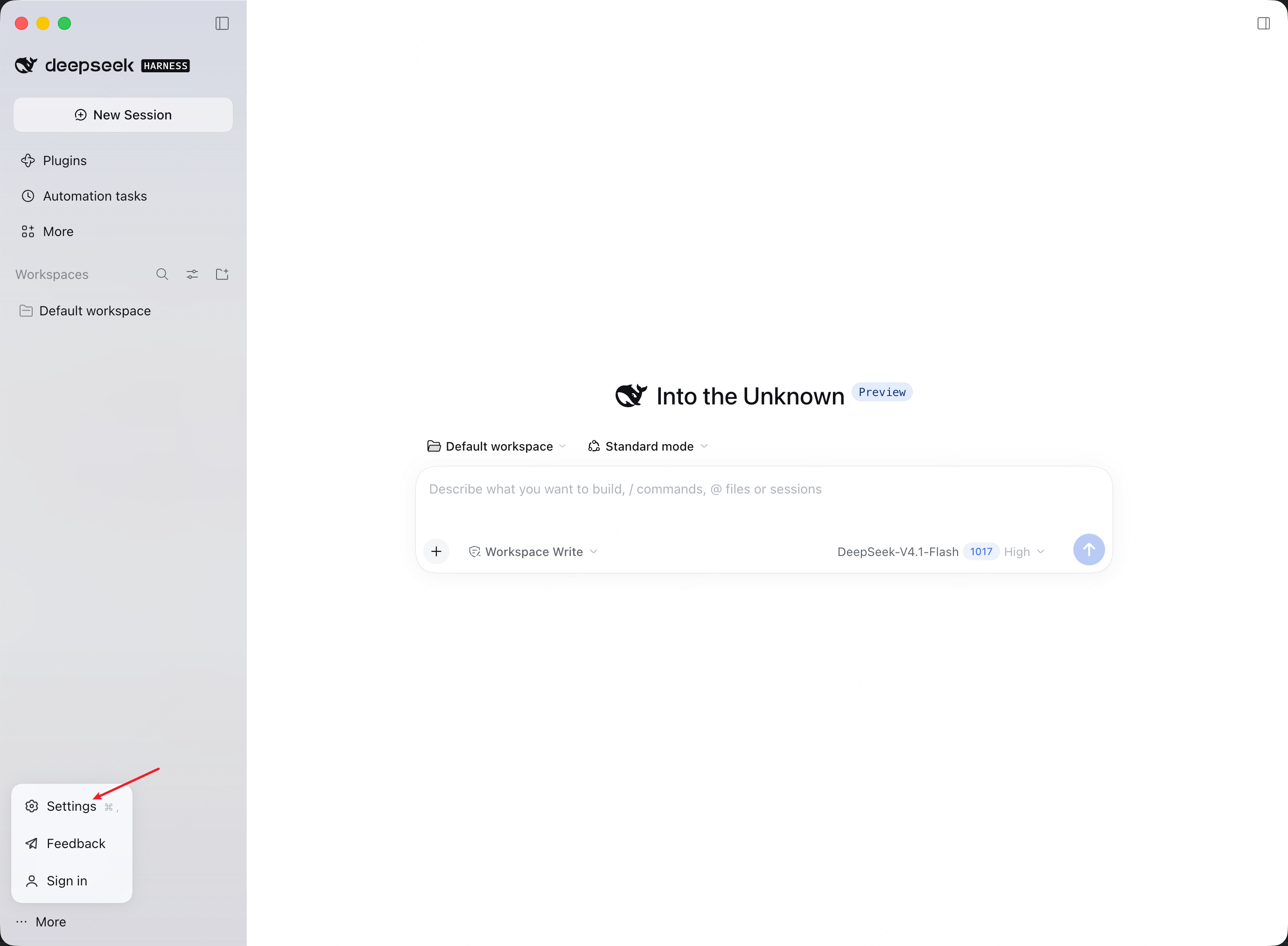
- Open Settings
Click "More" in the bottom-left corner of the main window, then choose "Settings" from the menu.
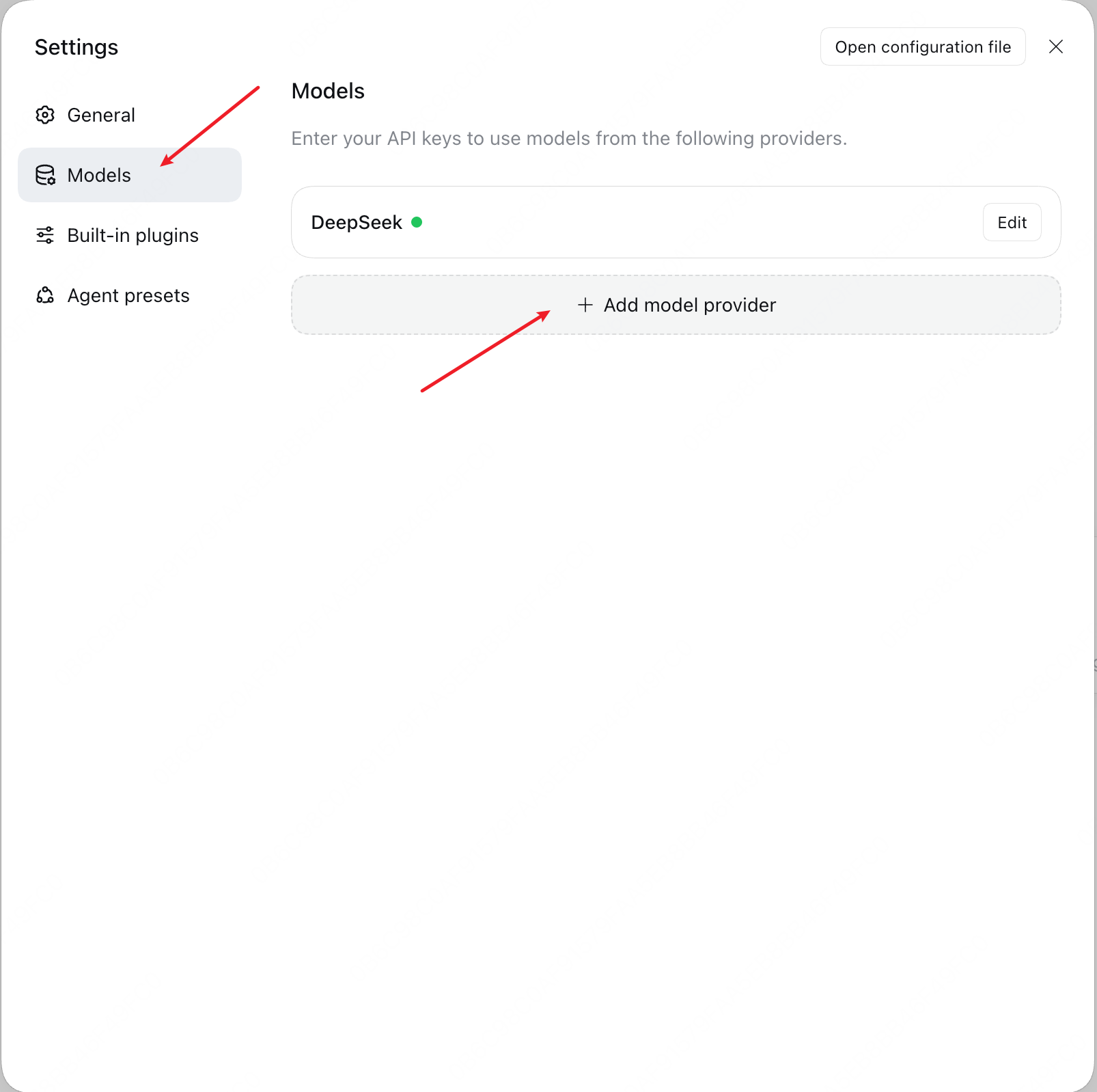
- Add a model provider
Select "Models" on the left of the Settings page, click "+ Add model provider", and switch to the "Custom model API" tab.
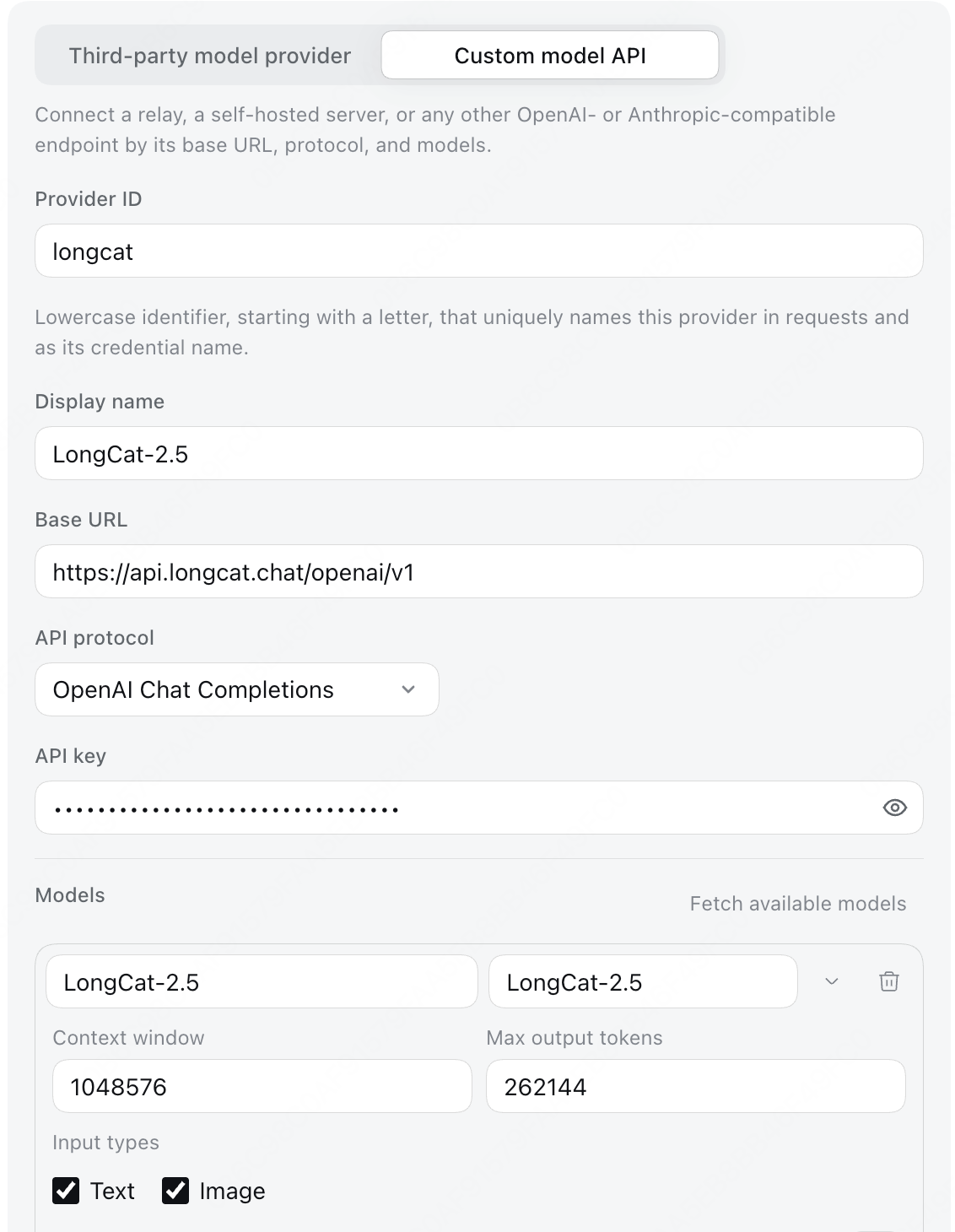
- Fill in provider info
Fill in the form as follows:
| Field | Value |
|---|---|
| Provider ID | longcat (starts with a lowercase letter; uniquely identifies the provider in requests and cannot be changed once saved) |
| Display name | A custom name, e.g. LongCat |
| Base URL | https://api.longcat.chat/openai/v1 |
| API protocol | OpenAI Chat Completions |
| API key | Your LongCat API Key |
The API key is write-only: after saving, the page only shows a masked descriptor, and the key is stored in a local credentials file.
- Add models
In "Models", click "Fetch available models". The tool queries the endpoint with the address, protocol, and key you just entered (LongCat provides a /models list endpoint). Select LongCat-2.5 and add it. The model entry is auto-filled with parameters such as context window (1048576) and max output tokens (262144). If probing fails, you can manually enter the model ID LongCat-2.5 with the same effect.
Check "Image" under "Input types" of the model entry to send images in sessions (LongCat-2.5 supports image understanding).
- Select the model
After saving, select LongCat-2.5 in the model selector of the session input box. Selecting a model also sets it as the default for new sessions.
Advanced Configuration (Optional)
Advanced configuration is done by editing the config file at ~/.dsh/profiles/desktop/cordis.patch.yml (under $DSH_HOME/profiles/desktop/, where $DSH_HOME defaults to ~/.dsh). Changes take effect on the next request. You can also open the file directly via the "Open configuration file" button in the top-right corner of the Settings page.
Note: a configuration override replaces the entire entry of the corresponding provider. When editing an existing entry, keep all other original fields.
Enable Image Input
LongCat-2.5 supports image understanding (see the Visual Understanding doc). Simply check "Image" under "Input types" of the model entry (see the configuration steps above)—no config file changes needed.
If you prefer editing the config file directly, the equivalent is:
- id: llm-pi-ai
  name: "@deepseek-ai/dsh-llm-pi-ai"
  config:
    providers:
      longcat:
        api: openai-completions
        apiKeyEnv: LONGCAT_API_KEY
        baseURL: https://api.longcat.chat/openai/v1
        models:
          - id: LongCat-2.5
            input: [text, image]
Disable Thinking Mode
LongCat-2.5 has thinking enabled by default. The API controls it via the thinking field in the request body: {"type":"enabled"} to turn it on, {"type":"disabled"} to turn it off.
Note: The LongCat API only supports enabling or disabling thinking — thinking levels are not supported (the
reasoning_effortfield has no effect). Reasoning levels such aslow/medium/highhave no effect; onlyoff(thinking disabled) works.
Turn on the "Reasoning levels" switch on the model entry to configure reasoning levels. The "thinking off" level additionally requires compat.thinkingFormat: deepseek (currently set in the config file). Switching the reasoning level to off in the selector then sends thinking: {"type":"disabled"} to disable thinking; leaving it unselected keeps thinking on by default:
- id: llm-pi-ai
  name: "@deepseek-ai/dsh-llm-pi-ai"
  config:
    providers:
      longcat:
        api: openai-completions
        apiKeyEnv: LONGCAT_API_KEY
        baseURL: https://api.longcat.chat/openai/v1
        models:
          - id: LongCat-2.5
            compat:
              thinkingFormat: deepseek
            reasoningEfforts:
              off:
Request Compatibility Fixes
The LongCat endpoint is compatible with the standard OpenAI format, so no extra configuration is normally needed. If the endpoint rejects requests, try the following compatibility switches in the provider configuration (a route-level compat acts as the model default, and a model's own compat overrides it field by field):
- id: llm-pi-ai
  name: "@deepseek-ai/dsh-llm-pi-ai"
  config:
    providers:
      longcat:
        api: openai-completions
        apiKeyEnv: LONGCAT_API_KEY
        baseURL: https://api.longcat.chat/openai/v1
        compat:
          supportsDeveloperRole: false
          maxTokensField: max_tokens
        models:
          - id: LongCat-2.5
Using DeepSeek Harness
- After configuration, click "Select Workspace", add your project directory, and select it (the session input box is unavailable until a workspace is selected).
- Make sure the model in the session input box is
LongCat-2.5, then enter your question to start the conversation.
Troubleshooting
| Issue | Solution |
|---|---|
MISSING_CREDENTIAL error | Re-save the API Key under "Settings → Models" |
Reasoning levels low/medium/high have no effect | LongCat does not support thinking levels (reasoning_effort has no effect); only off (thinking disabled) works |
UNKNOWN_MODEL error | Switch to a configured model in the model selector, or add the missing model ID to the provider |
| "Fetch Available Models" returns 401 or an empty list | Check that the API Key is correct; if probing fails, manually enter the model ID with the same effect |
| Cannot send images in a session | Check "Image" under "Input types" of the model entry (or declare input: [text, image] as described in "Advanced Configuration") |
Configuration lost after editing cordis.patch.yml | Overrides replace the entire entry; keep the original providers and fields when editing an existing entry |